SPAT Revolution Plugins
SPAT Revolution is a standalone application, which means you need a way to transmit audio and automation data between SPAT Revolution and your production environment. In most cases, the ideal companion for SPAT Revolution is a DAW (Digital Audio Workstation), and plug-in integration is the most natural solution.
SPAT Revolution ships with three companion plug-ins: Send, Return, and Room. Together, they provide:
- Audio transport via Local Audio Path (shared-memory audio pipes) or hardware I/O.
- Automation of SPAT Revolution source and room parameters directly from your DAW timeline.
- Bidirectional synchronization — parameter changes made in SPAT Revolution are reflected back in the plug-in, and vice-versa.
Plugin formats
All three plug-ins are available in the following formats:
| Format | macOS | Windows |
|---|---|---|
| VST 2.4 | ✓ | ✓ |
| VST 3 | ✓ | ✓ |
| Audio Unit (AU) | ✓ | — |
| AAX (Pro Tools) | ✓ | ✓ |
Channel configurations
| Plugin | Max Channels | Description |
|---|---|---|
| SPAT Send | 64 in / 64 out | Audio pass-through from mono up to 64 channels |
| SPAT Return | 64 in / 64 out | Audio pass-through from mono up to 64 channels |
| SPAT Room | 2 in / 2 out | Stereo pass-through (control-only — no audio processing) |
The Three Plug-ins
SPAT Send
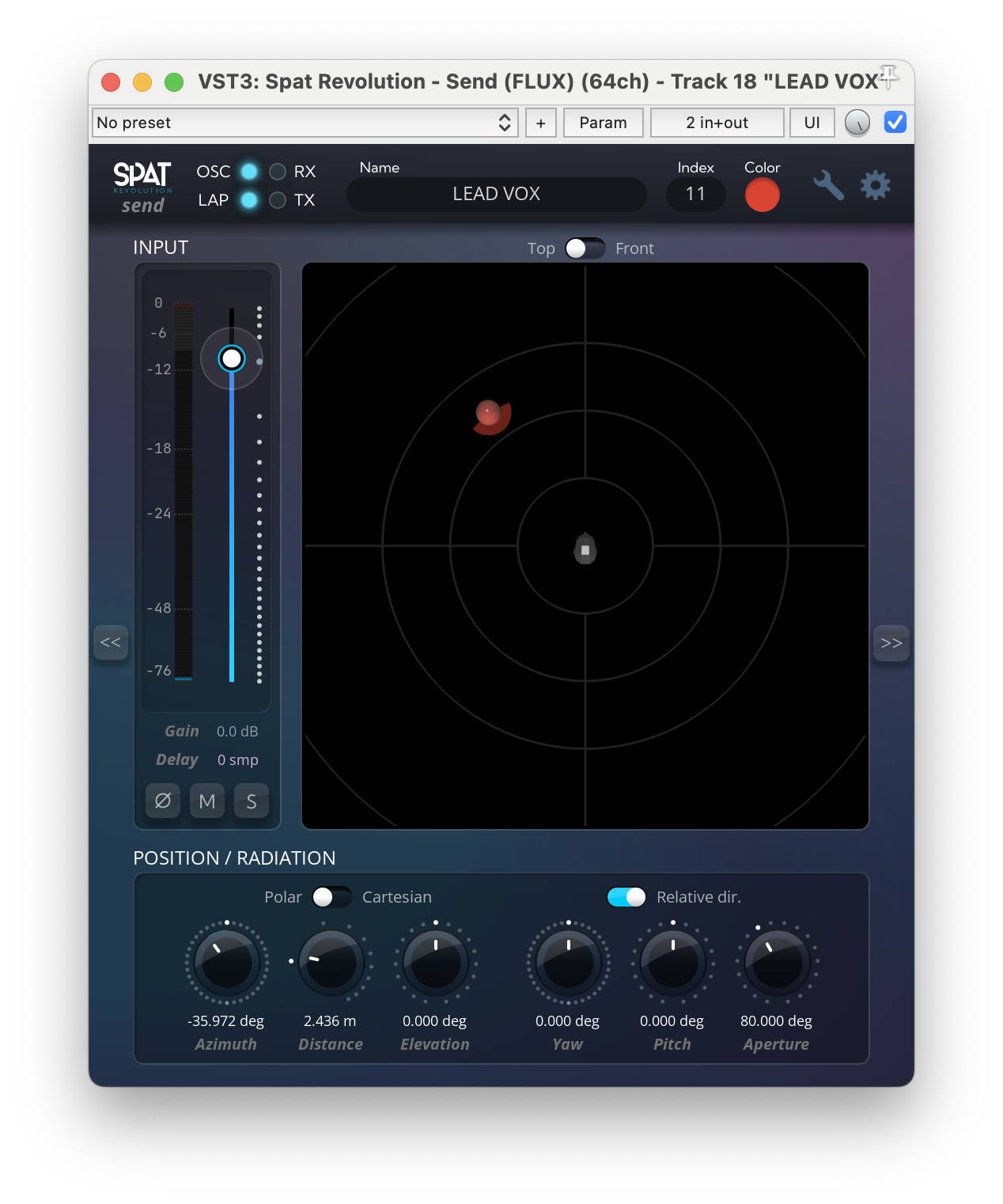
The Send plug-in is inserted on DAW tracks that you want to send to SPAT Revolution. These tracks become sources in your SPAT session. The plug-in serves two purposes:
- Audio transport — It sends the track’s audio to a SPAT Revolution input via Local Audio Path or hardware routing.
- Source parameter control — It exposes the full set of SPAT Revolution source parameters as DAW-automatable controls, so you can control and automate everything directly from your DAW.
The automatable parameters include:
- Localization — Azimuth, Elevation, Distance, X/Y/Z position, Yaw, Pitch, Aperture, Spread Factor, and more.
- Source controls — Enable, Solo, Invert Phase, Gain, and Source Selection in the SPAT Revolution UI.
- Perceptual factors — Presence, Warmth, Brilliance, Room Presence, Running Reverberance, Envelopment, and individual reverb/early/cluster/tail enables.
- Radiation — Per-band on-axis and omni-directional gain controls with crossover frequencies.
- Other — Doppler, Air Absorption, Distance Drop-off curve and factor, LFE sends (up to 4), Input Delay compensation, and per-room send gains.
- Setup — Index, Interpolation Time, Local Audio Path Mode, Thru, Number of Channels, OSC Enable (primary and secondary).
The Send plug-in also transmits the source display color to SPAT Revolution, so you can color-code your sources from the DAW.
Interpolation
Parameter changes can be smoothed using the Interpolation Time setting. When Interpolation Link is enabled, all plug-in instances sharing the same link group use a global interpolation time. When disabled, each instance has its own independent smoothing time. Interpolation applies to position, perceptual factors, and other continuous parameters.
SPAT Return
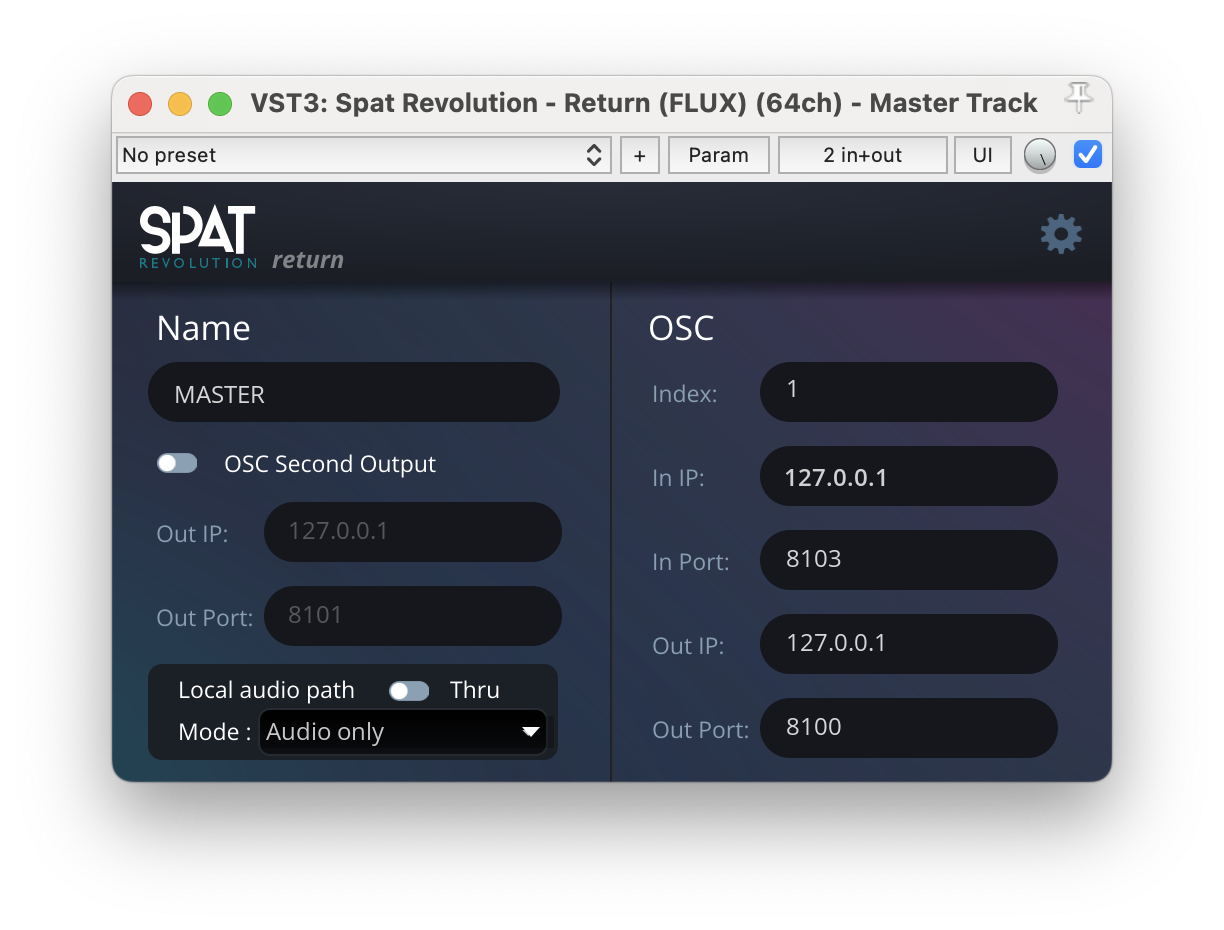
The Return plug-in is inserted on a DAW bus or track to receive processed audio back from a SPAT Revolution output via Local Audio Path. Unlike the Send plug-in, the Return does not send audio to SPAT Revolution — it only receives.
The Return plug-in has a minimal parameter set focused on output routing:
- Setup — Index, Interpolation Time, Local Audio Path Mode, Thru, Number of Channels, OSC Enable (primary and secondary).
- Audio — Output Gain.
SPAT Room
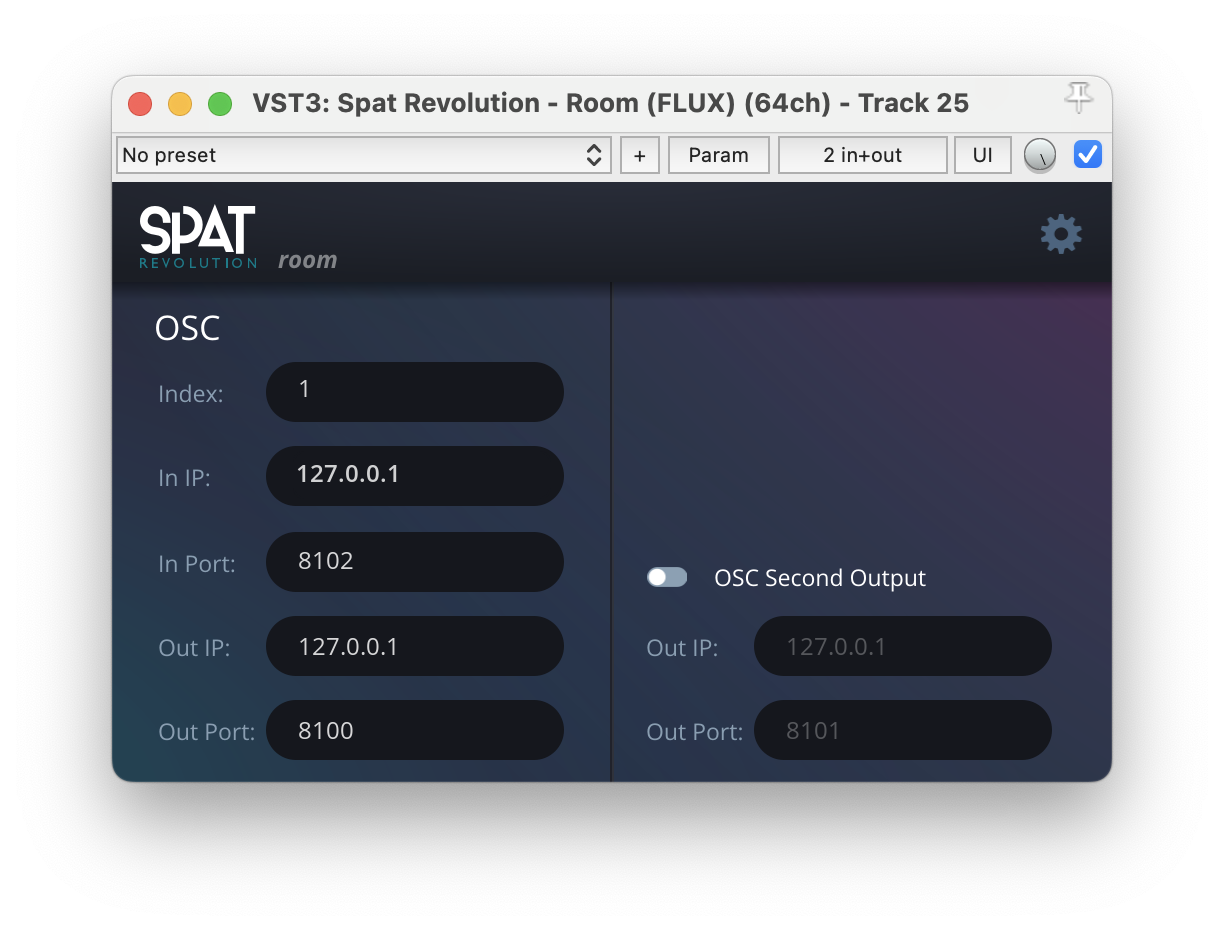
The Room plug-in is a control-only plug-in that provides DAW automation of SPAT Revolution Room parameters. It does not process or transport any audio — it is a stereo pass-through. You can insert it on any DAW track.
The Room plug-in exposes the full set of SPAT Revolution room parameters as DAW-automatable controls:
- Listener — Position (X/Y/Z), Orientation (Yaw/Pitch/Roll), and Orientation Enable.
- Room geometry — Room Size and Room Gain.
- Reverb — Enable, Density, Start, Frequency, Room Size, Decay Time, HF Decay, HF Frequency, Pre-Delay, Infinite mode, and Air Absorption.
- Early reflections — Enable, Min/Max time, Distribution, and Shape.
- Cluster reflections — Enable, Min/Max time.
- Distance — Min/Max Distance for attenuation range.
- Setup — Index, Interpolation Time, OSC Enable (primary and secondary).
Workflows
Local Audio Path for Audio and Automation
FLUX:: Immersive has developed a robust solution for transmitting both audio streams and automation data between applications: Local Audio Path (LAP). This shared-memory audio pipe technology transfers audio between the DAW plug-ins and SPAT Revolution without going through hardware I/O, providing internal audio routing with zero additional hardware latency.
Each SPAT Send plug-in offers three LAP modes:
- Disabled — No LAP; audio must be routed via hardware I/O.
- Audio Only — Audio is sent via shared memory; automation is sent via OSC separately.
- Audio and Automation — Both audio and automation are embedded in the same audio pipe, ensuring the tightest possible synchronization between audio and parameter changes.
LAP is available only in SPAT Send and SPAT Return, as the Room plug-in does not handle audio.
For detailed setup instructions, routing rules, and delay compensation, see SPAT PI : Local audio path.
Hardware Routing for Audio and OSC for Automation
If SPAT Revolution and your DAW run on different computers, you can still use SPAT plug-ins to transmit automation data via Open Sound Control (OSC) over the network. Audio will require a dedicated solution, typically an audio-over-IP protocol or hardware routing.
Hybrid Solution — LAP for Audio and OSC for Automation
SPAT plug-ins also support a hybrid approach: LAP for audio and OSC for automation. This separation can improve stability in certain scenarios and gives you more flexibility in how you route your signals.
OSC Communication
All three plug-ins communicate with SPAT Revolution via OSC. Each plug-in instance can use two independent OSC sockets:
- Primary socket — Controlled by the
OSC Enableparameter. Enabled by default. - Secondary socket — Controlled by the
OSC Enable 2ndparameter. Disabled by default. Useful for backup or secondary connections.
OSC settings (IP address, port) are configured in the plug-in’s setup panel and are saved with the DAW session.
Each plug-in type uses a specific OSC address pattern:
| Plugin | OSC Pattern | Targets |
|---|---|---|
| SPAT Send | /source/[index]/[property] |
Source parameters |
| SPAT Return | /output/[index]/[property] |
Output parameters |
| SPAT Room | /room/[index]/[property] |
Room parameters |
Bidirectional synchronization
All plug-ins maintain bidirectional parameter synchronization:
- When a parameter changes in the DAW (automation, manual edit), the new value is sent to SPAT Revolution.
- When a parameter changes in SPAT Revolution (UI, snapshot recall, cue action), the new value is sent back to the plug-in and the DAW state is updated.
- If both sides change the same parameter simultaneously, the most recent change takes effect (last-write-wins).
Index Assignment
The Index parameter determines which SPAT Revolution object the plug-in controls:
| Plugin | Index Maps To |
|---|---|
| SPAT Send | Input/Source number in SPAT Revolution |
| SPAT Return | Output number in SPAT Revolution |
| SPAT Room | Room number in SPAT Revolution |
The Index in the plug-in corresponds to the Remote Number of the object in SPAT Revolution. You can customize remote numbers per object in the SPAT Revolution Setup page.
Multiple plug-in instances can target the same index — in this case, all instances stay synchronized via OSC feedback. However, be aware that simultaneous changes from multiple instances follow the last-write-wins rule.
Thru Mode
Both SPAT Send and SPAT Return have a Thru parameter:
- SPAT Send — When Thru is enabled, the audio passes through the plug-in unchanged, so the dry signal remains available downstream in your DAW mix. When disabled, the plug-in outputs silence on the DAW side (audio is only sent to SPAT Revolution).
- SPAT Return — When Thru is enabled, the audio received from SPAT Revolution passes through to the DAW output. When disabled, the DAW output is silenced.
Speaker Layout Exchange
The SPAT Send and SPAT Return plug-ins exchange speaker layout (I/O configuration) bidirectionally with SPAT Revolution. This means you can select a channel format in the plug-in UI (e.g., 5.1, 7.1.4, Stereo, HOA 3rd Order) and have it automatically propagate to the matching SPAT Revolution block — and vice-versa.
The exchanged information includes the channel count, the speaker arrangement name, and the stream type (channel-based, Ambisonic, binaural, etc.).
How it works
Speaker layout synchronization happens through two parallel mechanisms:
Via Local Audio Path — When LAP is enabled, the audio pipe includes a dedicated shared-memory region for I/O configuration exchange. Both the plug-in and SPAT Revolution write their current configuration to the pipe, and each side automatically detects when the other has changed. A conflict detection mechanism prevents feedback loops during transitions.
Via OSC — When LAP is disabled (or in addition to LAP), I/O configuration changes are sent via OSC messages. The configuration data is serialized and transmitted as part of the standard OSC communication.
Selecting a layout
Each plug-in (Send and Return) provides a layout selector in its UI that lists all available speaker arrangements, organized by category:
| Category | Examples |
|---|---|
| Mono / Stereo | Mono, Stereo |
| Surround | 5.1 Film, 5.1 DTS, 7.1 SDDS, 7.1 DTS |
| Immersive | 7.1.2, 7.1.4, 9.1.6, 22.2 |
| Ambisonic | HOA 1st–7th Order, FOA |
| Binaural | Binaural (2 ch) |
| Custom | User-defined speaker arrangements |
When you select a layout in the plug-in, the new configuration is sent to SPAT Revolution and the matching block is updated automatically. Conversely, when you change the configuration in SPAT Revolution (including via snapshot recall), the change is sent back to the plug-in so its UI always reflects the actual block configuration.
The SPAT Room plug-in does not exchange speaker layouts — it is a stereo control-only plug-in with no audio routing to SPAT Revolution.
Typical DAW Setup
Here is a step-by-step workflow for setting up a typical session:
- Insert SPAT Send on each audio track that should be spatialized. Set the Index to match the desired Input/Source number in SPAT Revolution.
- Insert SPAT Return on a bus or track to receive the rendered output. Set the Index to match the SPAT Revolution Output number.
- Optionally insert SPAT Room on any track to automate room parameters from the DAW timeline.
- Enable Local Audio Path on Send and Return plug-ins to use shared-memory audio transport.
- Configure SPAT Revolution — Set Input and Output blocks to the
Local Audiostream type in the Setup Page. - Select the speaker layout in the plug-in or in SPAT Revolution — the configuration will synchronize automatically between both sides.
- Automate — Record or draw automation for source positions, reverb parameters, and any other exposed controls.
All plug-in parameter values are saved with your DAW session. When you reopen the session, the plug-ins restore their state and re-establish communication with SPAT Revolution automatically.