User Interface
The SPAT Revolution user interface is designed to give you quick access to all the tools you need for spatial audio production. This page provides an overview of the main interface elements and how to navigate between them.
Main Window Layout
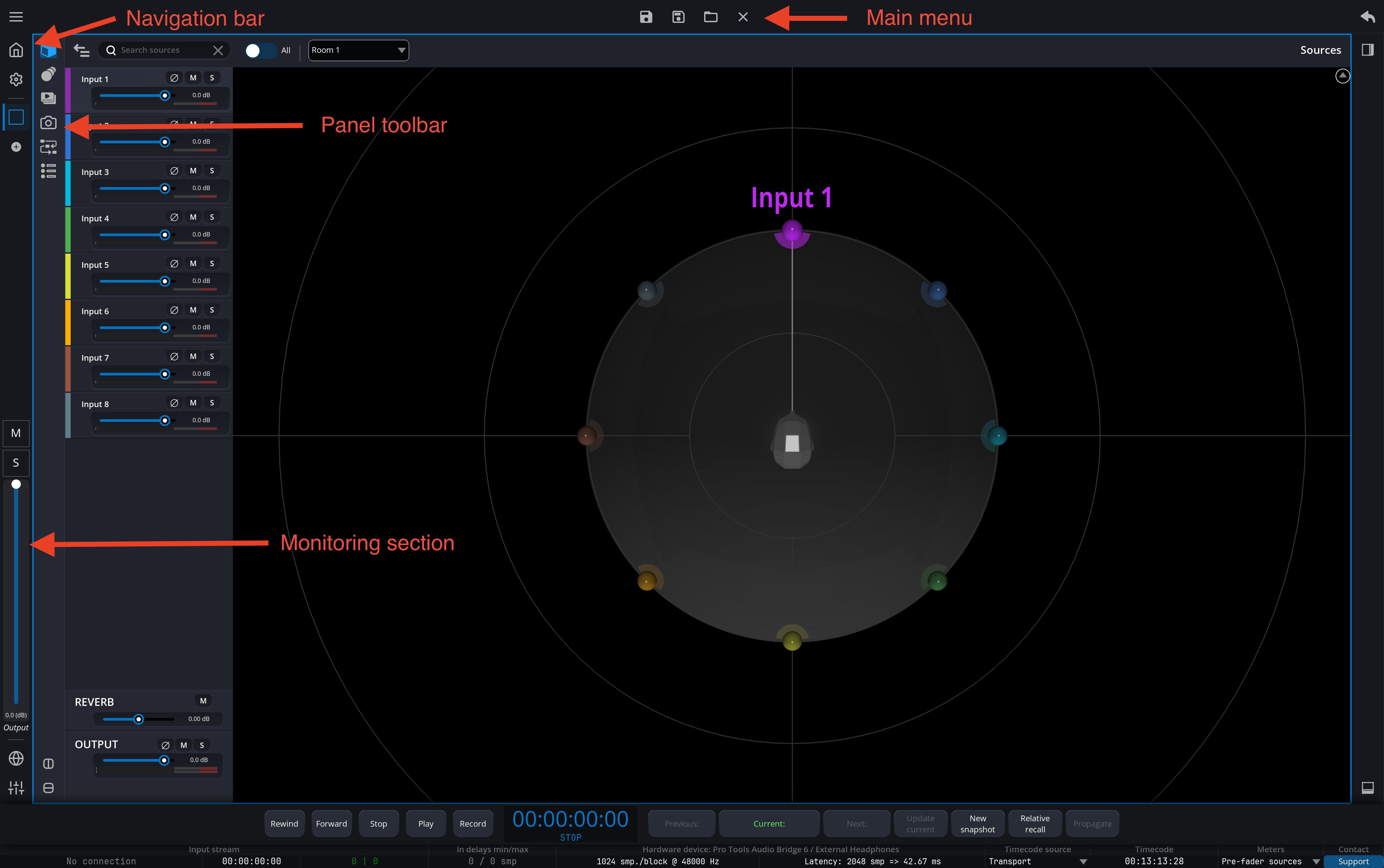
The SPAT Revolution interface is organized around two concepts: pages and panels. Pages are containers — each page holds an arrangement of one or more panels. Panels are the actual views where you interact with your session (3D room view, cue list, snapshot list, etc.).
The window is divided into the following areas:
- Main menu — Located at the top of the window, it provides common actions such as Save, Save As, Open, and Close. Depending on the currently visible page, additional context-specific actions may appear.
- Navigation bar — A vertical bar on the right side of the window that lets you switch between pages. There are two built-in pages: the Home page and the Setup page. Beyond these, you can create as many user-defined pages as you need, each with its own custom arrangement of panels.
- Panel toolbar — When a user-defined page is active, a secondary toolbar appears at the top of the page. It lets you choose which panel to display in the current view area, and provides
Split VerticallyandSplit Horizontallybuttons to divide the view into multiple panels side by side or stacked (see Splitting panels below).
The Setup page is the central hub where you build your audio signal flow. You create and connect inputs, sources, rooms, masters, and outputs here. See Setup Page for details.
Available Panels
The following panels are available in SPAT Revolution. You can display any of them inside a user-defined page:
- Room panels — Each room in your session has its own panel where you can view and manipulate sources in a 3D or 2D spatial view. This is where you position and move your sources interactively. See Room for details.
- Animations panel — Create and manage LFO and trajectory animations to automate source movement. See Animation System for details.
- Timelines panel — Import audio files and record spatial automation directly within SPAT Revolution. See Timeline System for details.
- Snapshots panel — Save and recall complete states of your session, including source positions, room parameters, and effect settings. See Snapshots page for details.
- Cues panel — Manage your show-control cues: create cue sequences with triggers (timecode, OSC, MIDI) and actions (snapshot recalls, source movements, OSC/MIDI sends). See Cue System for details.
- Items panel — An alternate view that displays all elements (items) of a session as a list. Ideal for monitoring multiple parameters at a glance.
Navigation
Switching between pages
Click on any page name in the navigation bar to switch to it. The currently active page is highlighted. You can create additional pages to build custom workspaces — for example, one page with a Room 3D view and a Snapshots panel side by side, and another page dedicated to Cues and Animations.
Panel layout
List-based panels (Cues, Animations, Timelines, Snapshots, Items) use a consistent split layout:
- A list or grid on the left side shows all items.
- An inspector or detail view on the right side shows the properties and controls for the selected item(s).
You can collapse the left list using the Fold button in the panel toolbar to give the detail view more screen space. This is especially useful on smaller displays or when you need a larger view of the waveform or EQ curve.
Room panels display a 3D or 2D spatial view instead, with source properties shown in an inspector on the bottom when a source, the reverb or the output is selected.
Splitting panels
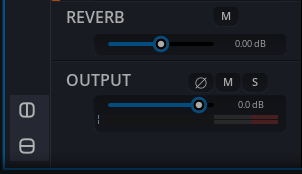
Each panel area can be divided into two using the Split Vertically or Split Horizontally buttons in the panel toolbar. This creates two independent sub-panels that can each display a different panel — for example, a 3D room view on the left and a Snapshots panel on the right, or a Cues panel on top and Animations panel on the bottom.
Monitoring section
Below the layout selection, there are dedicated controls for monitoring.
- The M button mutes all SPAT Revolution outputs.
- The S button activates when sources are soloed and allows clearing the solo state.
- The Output slider scales down the output level of all SPAT Revolution channels.
Bottom Toolbar
The toolbar at the bottom of the window provides:
- Transport controls — Play, stop, and seek buttons for controlling session playback.
- Timecode display — Shows the current playback position in
HH:MM:SS:FFformat or a musical format, according to the preferences. - Snapshot bar or Cue bar — An optional compact control panel that lets you recall snapshots or trigger cues directly from the transport area without navigating to the dedicated panel. You can toggle these from the View menu.
- Timeline bar — An optional compact waveform display showing the active timeline’s playback state, also toggled from the View menu.
The Snapshot bar and Cue bar are mutually exclusive — enabling one automatically disables the other. The Timeline bar can be shown alongside either of them.
Panel Visibility Shortcuts
Three keyboard shortcuts allow you to quickly toggle the main UI panels during a mix session:
| Panel | macOS Shortcut | Windows Shortcut |
|---|---|---|
| Bottom Inspector | ⌥ Space |
Alt + Space |
| Right Inspector | ⌥ ⇧ Space |
Alt + Shift + Space |
| Global Toolbar | ⌘ ⌥ ⇧ Space |
Ctrl + Alt + Shift + Space |
These actions are also available under the View menu. The bottom inspector opens at a minimum height of 400 px and the right inspector at a minimum width of 300 px.
Inspectors and Property Panels
Throughout SPAT Revolution, selected objects display their properties in inspector panels. These panels appear on the right side of the interface and provide detailed controls for the selected item.
For example:
- Selecting a source in a room view opens the Source Properties inspector, where you can adjust all object parameters, including position, gain, reverb parameters, and audio effects.
- Selecting a cue in the Cues panel opens the cue inspector, showing its trigger conditions and actions.
3D Room Views
The room views are the heart of the SPAT Revolution mixing interface. Each room has its own view where you can:
- See all sources positioned in the 3D space around the listener.
- Move sources by clicking and dragging them directly in the view.
- Switch between top-down (2D) and perspective (3D) views.
- Zoom and rotate the view to get the best angle on your spatial scene.
For detailed information about the 3D view and its controls, see Understanding the mixing zones.
Common Toolbar Actions

List-based panels (Cues, Animations, Timelines, Snapshots, Items) share a consistent set of toolbar actions:
Fold— Collapse or expand the left list. When folded, the inspector or detail view takes up the full width.Add— Create a new item (cue, animation, timeline, etc.).Duplicate— Duplicate the selected item(s).Delete— Delete the selected item(s). If the item is referenced elsewhere (e.g., a cue referenced by other cues, or a timeline used in cue actions), a safety dialog will warn you before deletion.Move Up/Move Down— Reorder items in the list.
Multi-Selection
In most list views, you can select multiple items at once:
- Click to select a single item.
- Ctrl+Click (or Cmd+Click on macOS) to add individual items to the selection.
- Shift+Click to select a range of items.
When multiple items are selected, operations such as delete, duplicate, or property changes apply to all selected items at once.